# Link widget: extra options
> The Link widget settings in N1ED: text, URL, where to open it, styling as a Bootstrap button, and linking to a file via Flmngr.
Source: https://n1ed.com/blog/link-options
Published: 2023-06-15
Updated: 2026-09-20
Every page of n1ed.com has a Markdown copy at its URL + `.md` (`index.md` after a URL that ends in `/`); all of them are in one file: https://n1ed.com/llms-full.txt
In N1ED, link creation is facilitated by a special widget called Link. Like the built-in Link plugins in CKEditor and TinyMCE, the Link widget lets you insert hyperlinks into your content and provides a UI to create and edit them.
In the widget settings on the sidebar, you can see the standard options for adding a link:
- **"Text"** - title for the link,
- **"URL"** - to link external resources,
- **"Open in"** - this option allows you to set where to display the linked URL: this tab (default state), new tab `target="_blank"`, or current frame `target="_self"`.
The widget gives you extra options such as adding CSS classes, styles and attributes.
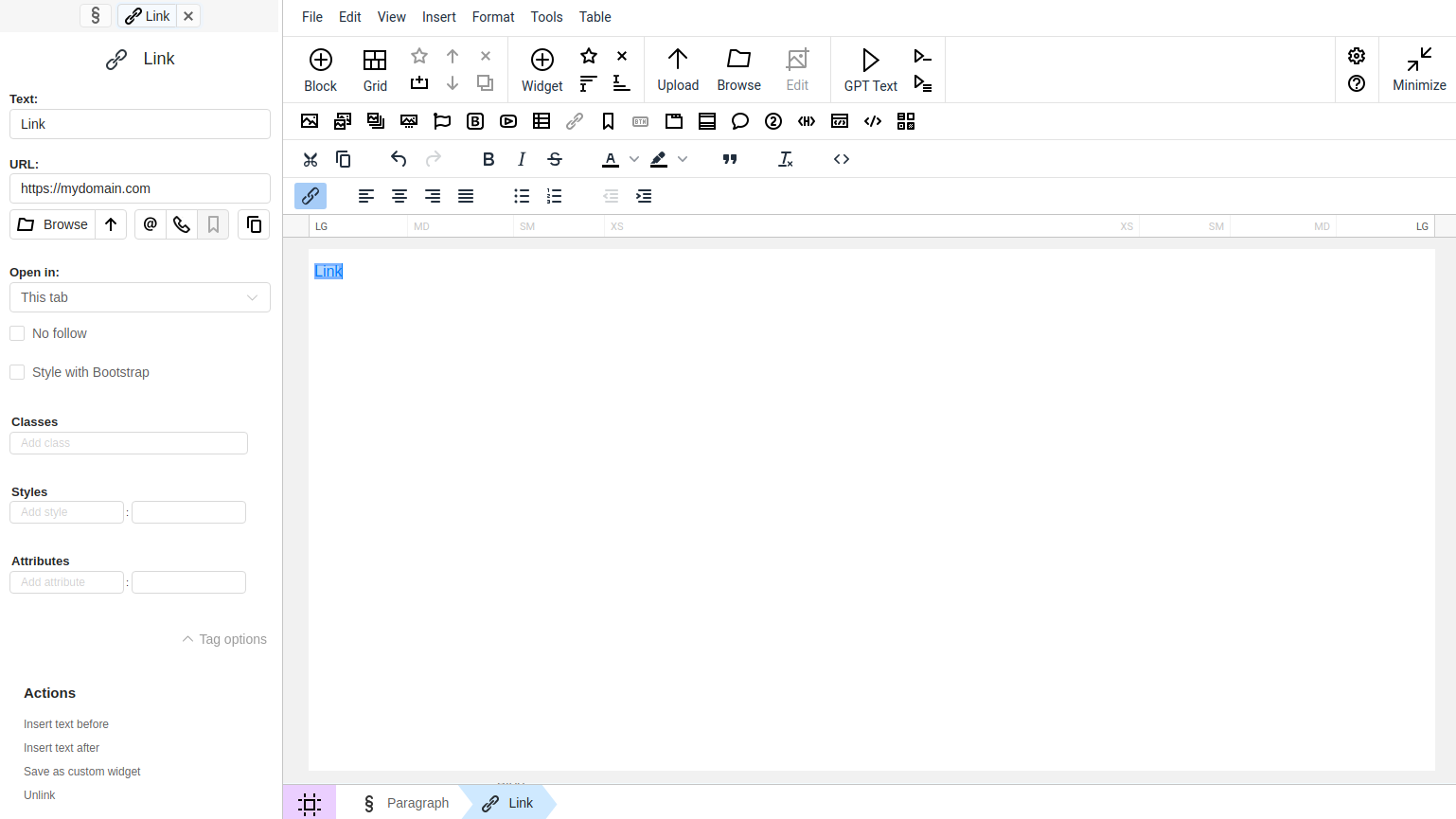
*Default link settings*
If you are using Bootstrap in your website theme, you can style your links with Bootstrap by using the **"Style with Bootstrap"** option. When you select this option, the link remains a link but gains an additional attribute `role="button"`.
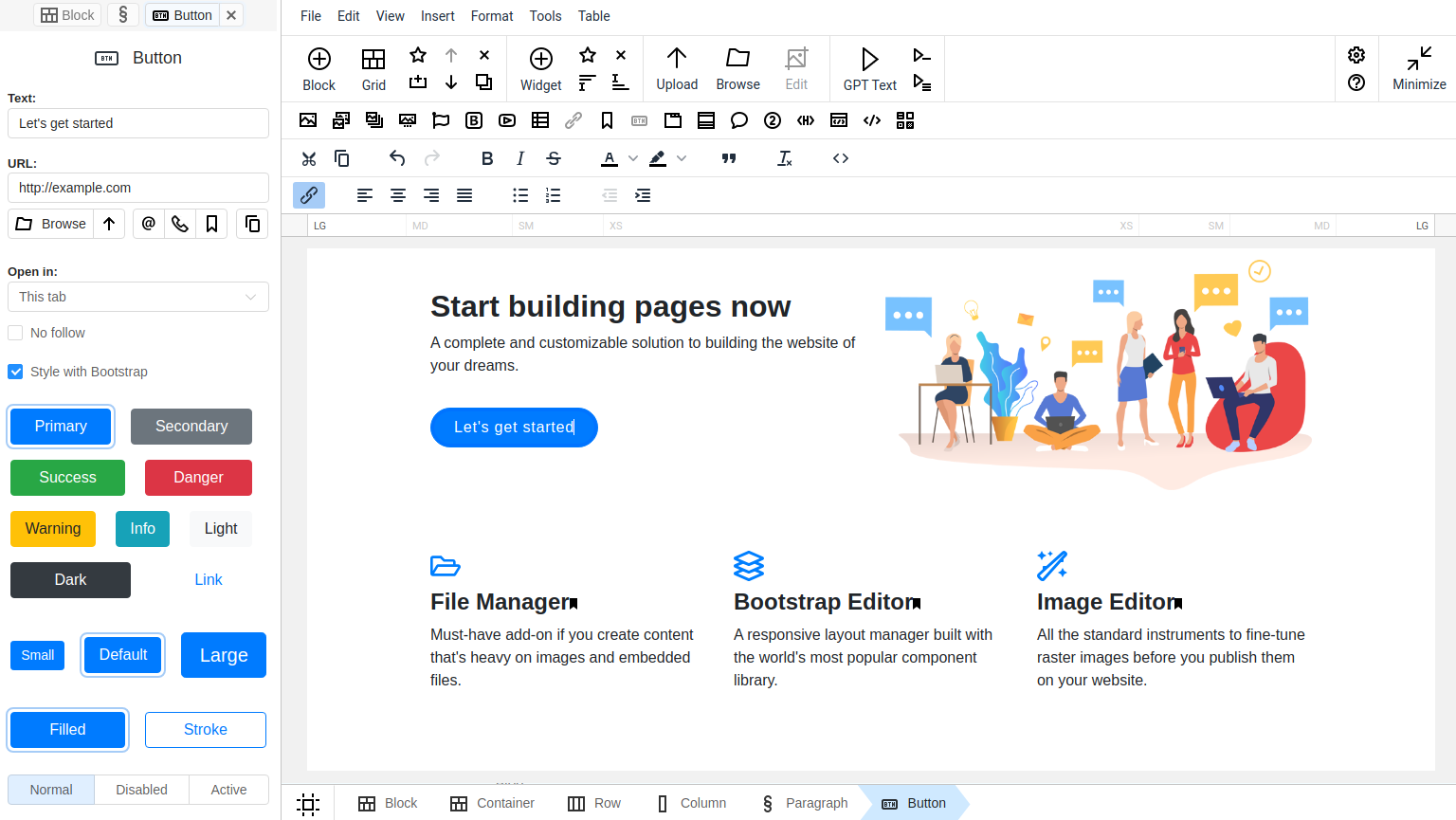
*Link as Bootstrap button*
## What the hyperlink points to?
The HTML element (or anchor element), with its href attribute, creates a hyperlink to web pages, files, email addresses, locations on the same page, or anything else a URL can address.
### URL
The URL that the hyperlink points to.
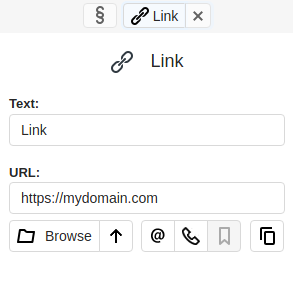
*Link URL*
### Link to a file
To insert a link to a file, use the **Browse**/**Upload** buttons. In the first case, the Flmngr will open to select a file already uploaded to the file manager. In the second case, a system dialog window will open to choose a file from your computer.
In the URL field, a URL to the file will be automatically generated, such as:
```html
File
```
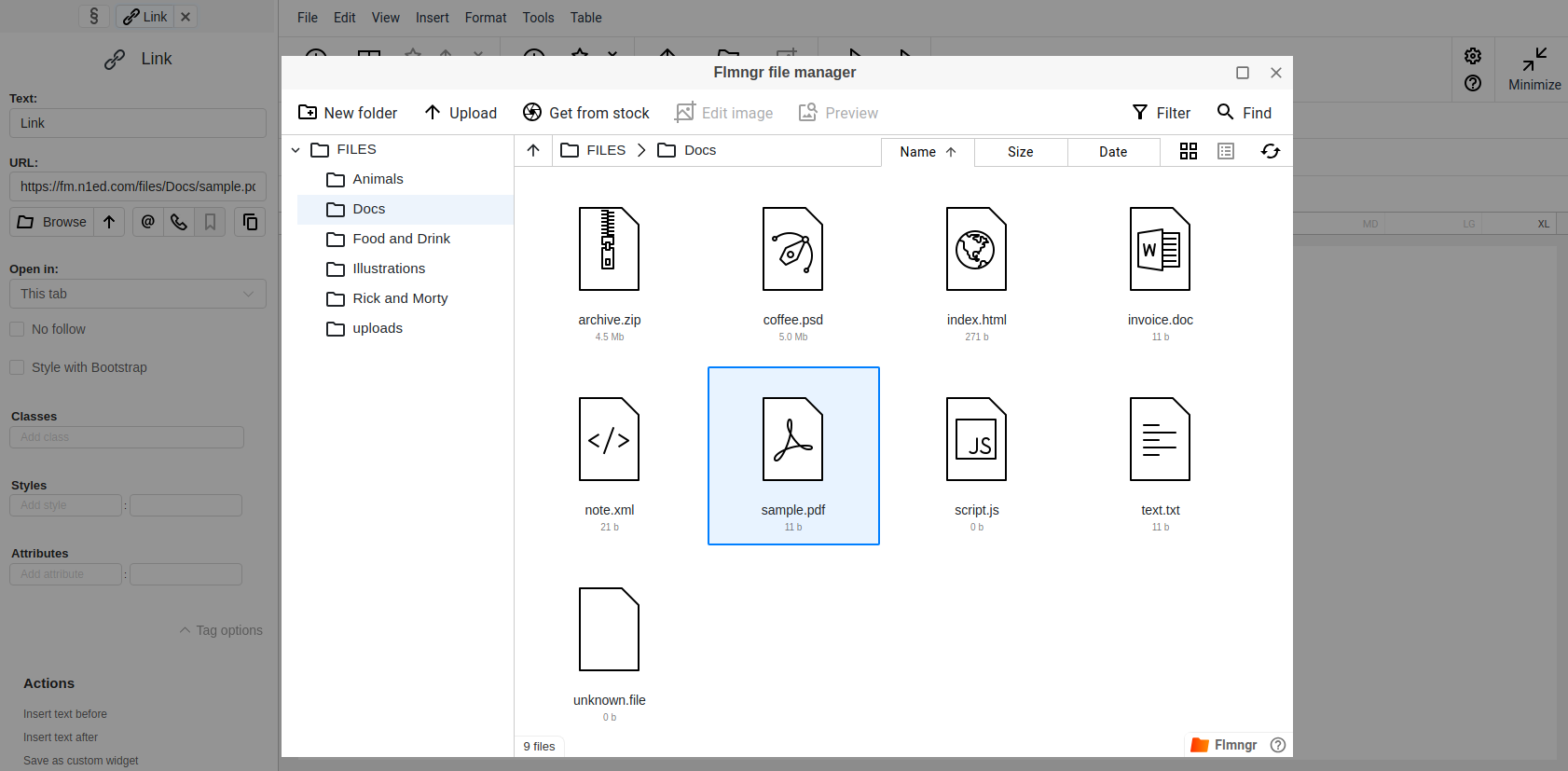
*Link to PDF file*
### Email address
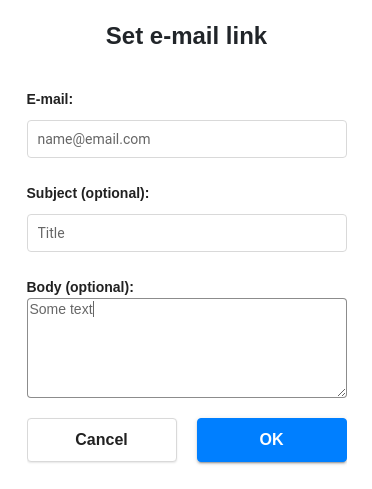
When selecting email, the **Set e-mail link** dialog will open. In the E-mail field, specify the email address. After inserting the link, the href attribute will appear as:
```html
Email
```
Optionally, you can also set the **Subject** and **Body** of the email and pass them inside the `href` attribute, for example:
```html
Email
```
This is especially useful when you need to create a link to an email address with a pre-filled inquiry on the page.
### Telephone number
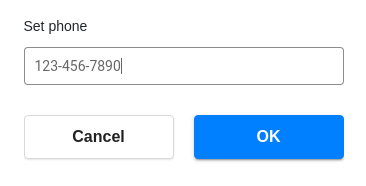
In the **Set phone** dialog that opens, specify the phone number, and you will receive a link in the following format:
```html
Phone
```
### Link to a section of a page
If you have anchors created on the current page, such as within headers like `Header
` or other parts of the page, you can link to the desired section. To do this, select the **Anchor** button and choose the corresponding ID in the dialog that opens.
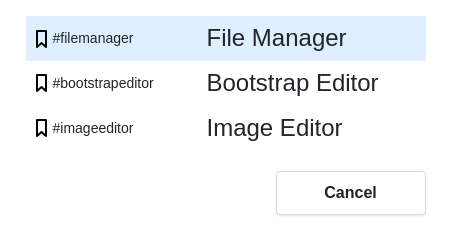
Anchors are particularly useful in longreads and landing pages for better navigation through the document. If there are no anchors on the page, this button will be disabled.
## How to create a linking image?
To make a picture a link in HTML, you can wrap the `![]() ` element inside an `` element. When users click on the image, they will be taken to the URL specified in the `` element's `href` attribute. Here's an html example:
```html
 ```
This functionality is already provided and fully automated in N1ED, so you don't have to write your own code. To create a linking image, use the **Wrap with link** action for the selected picture.
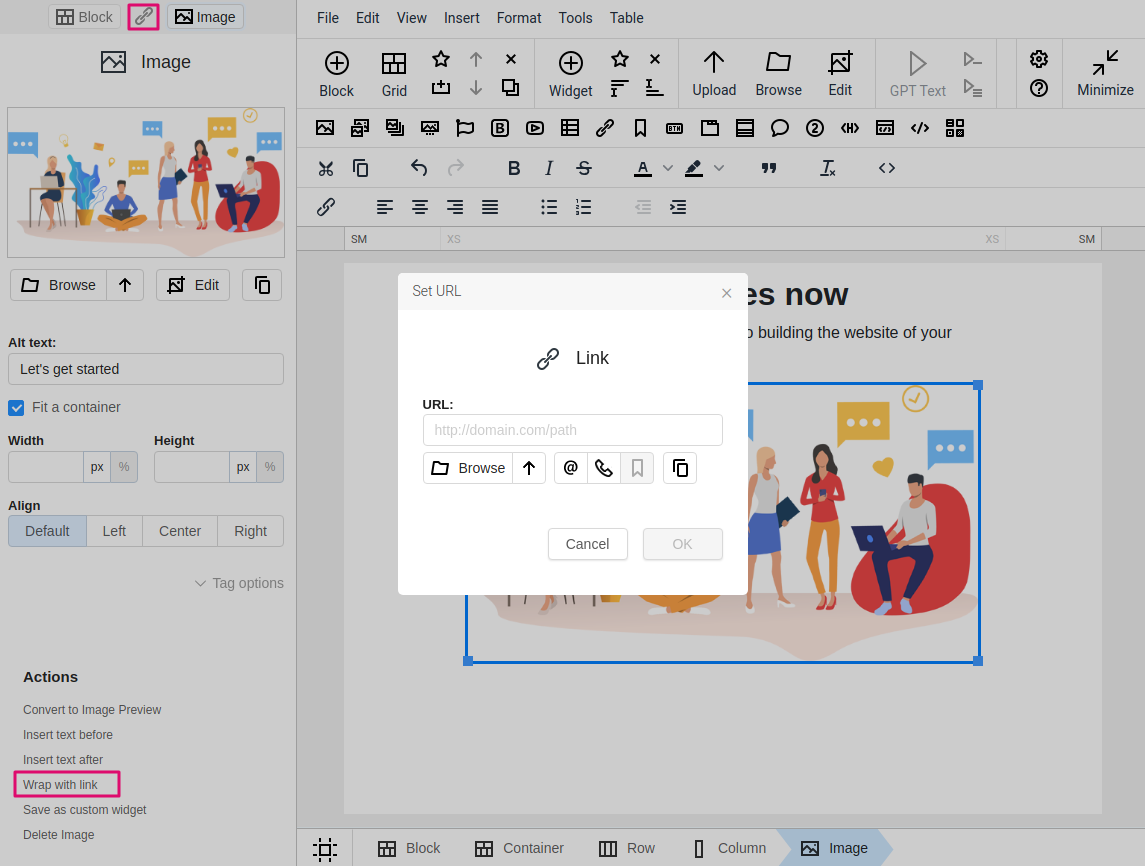
*Creating a linking image*
You can wrap not only images with a link. The same can be done with other widgets, such as icons (Font Awesome, Bootstrap Icons).
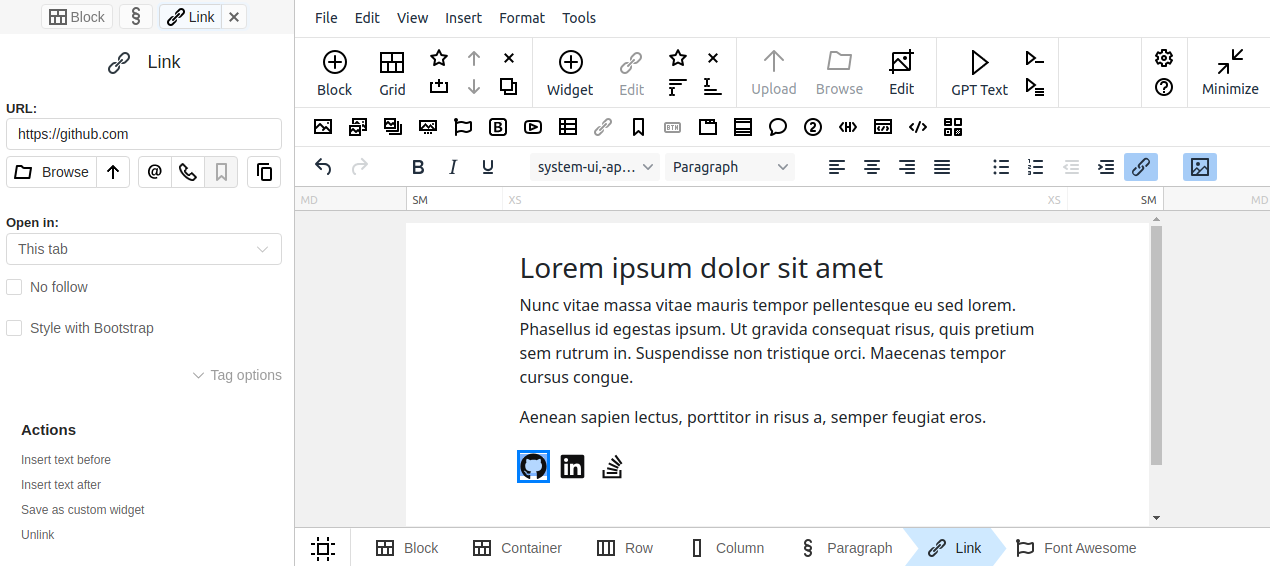
*Icon wraped with link*
To remove a link, switch back to the Link widget and use the **Unlink** action, or **x** button on the sidebar.
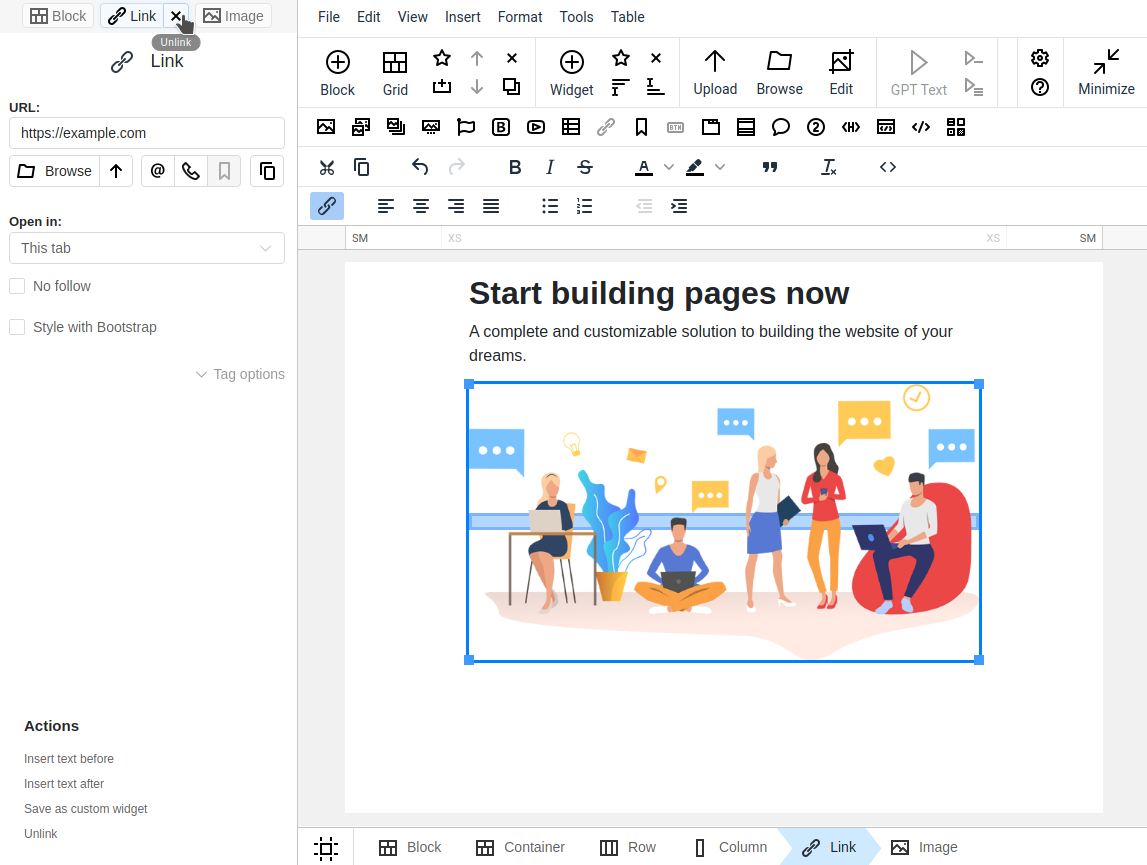
*Removing a link*