# Image42 image editor
> Crop, rotate, resize and add text to pictures with Image42, then save the result back to your server through the file manager.
Source: https://n1ed.com/how-to/image-editor
Section: Widgets and media > Image Editor
Updated: 2026-11-14
Every page of n1ed.com has a Markdown copy at its URL + `.md` (`index.md` after a URL that ends in `/`); all of them are in one file: https://n1ed.com/llms-full.txt
[Image42 opened from TinyMCE on an article's photo: cropped to the cup, more contrast, a caption, saved under a new name, and the edited photo back in the article](https://n1ed.com/img/video/image-editor-crop-filter-text.webm)
Images are an essential part of the content. When you prepare articles for publishing, be that your blog or a serious internet magazine, you face the need to modify an image, for example, crop, rotate, or resize it. Image42 (formerly ImgPen) image editor can do this for you.
The component involves all possible functionality to process images. Seamless integration with [Flmngr file manager](https://n1ed.com/how-to/file-manager) allows you to upload and save edited images to your server. You can find the complete description of its functions in the table below.
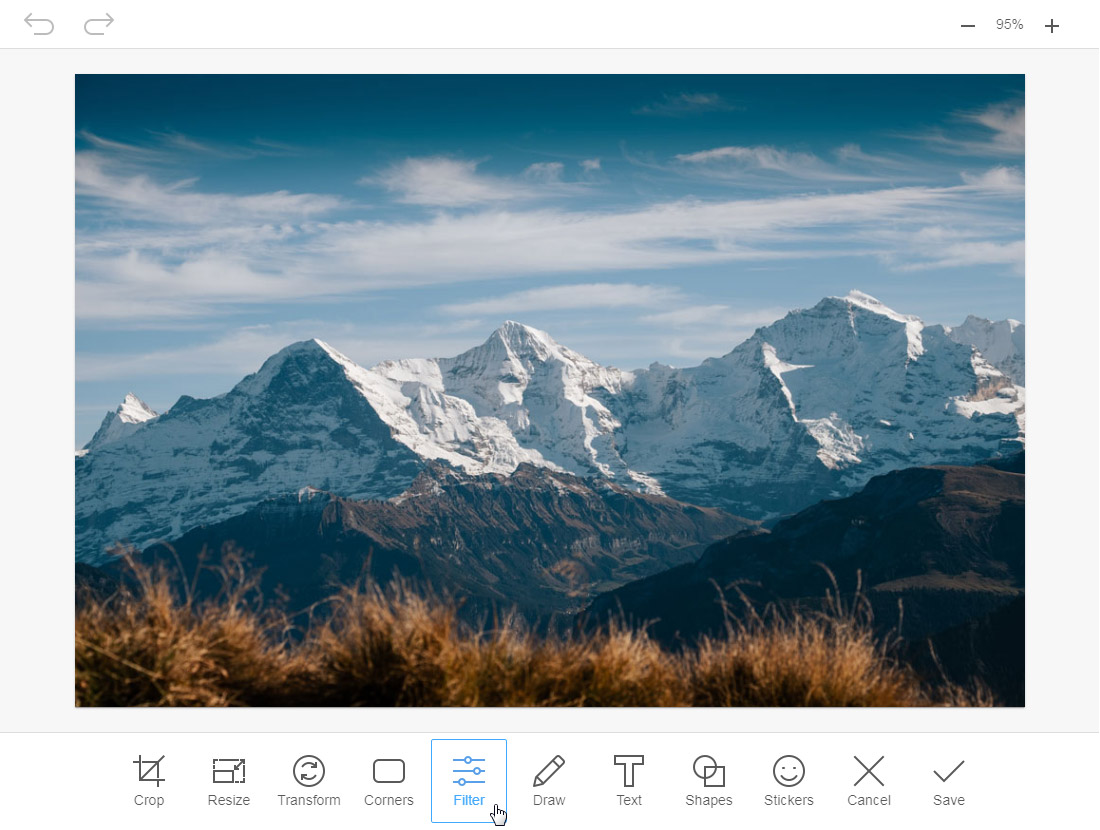
*Image editor toolset*
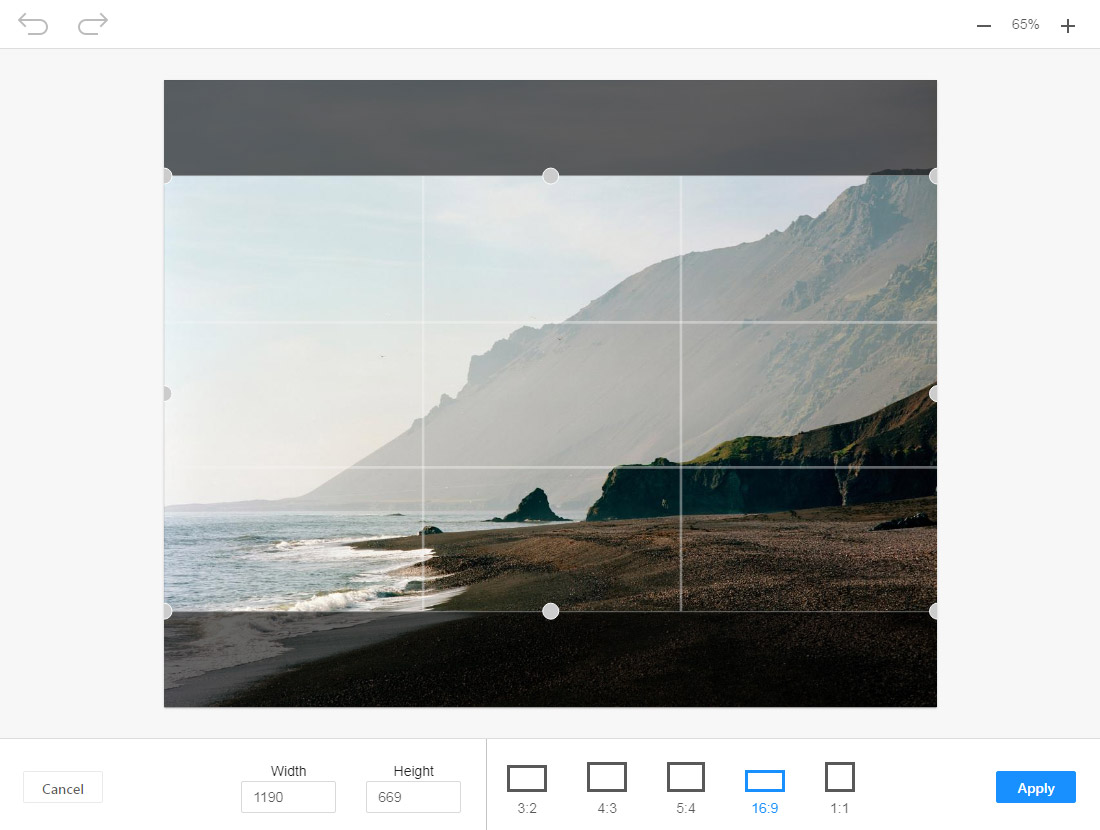
*Crop tool*
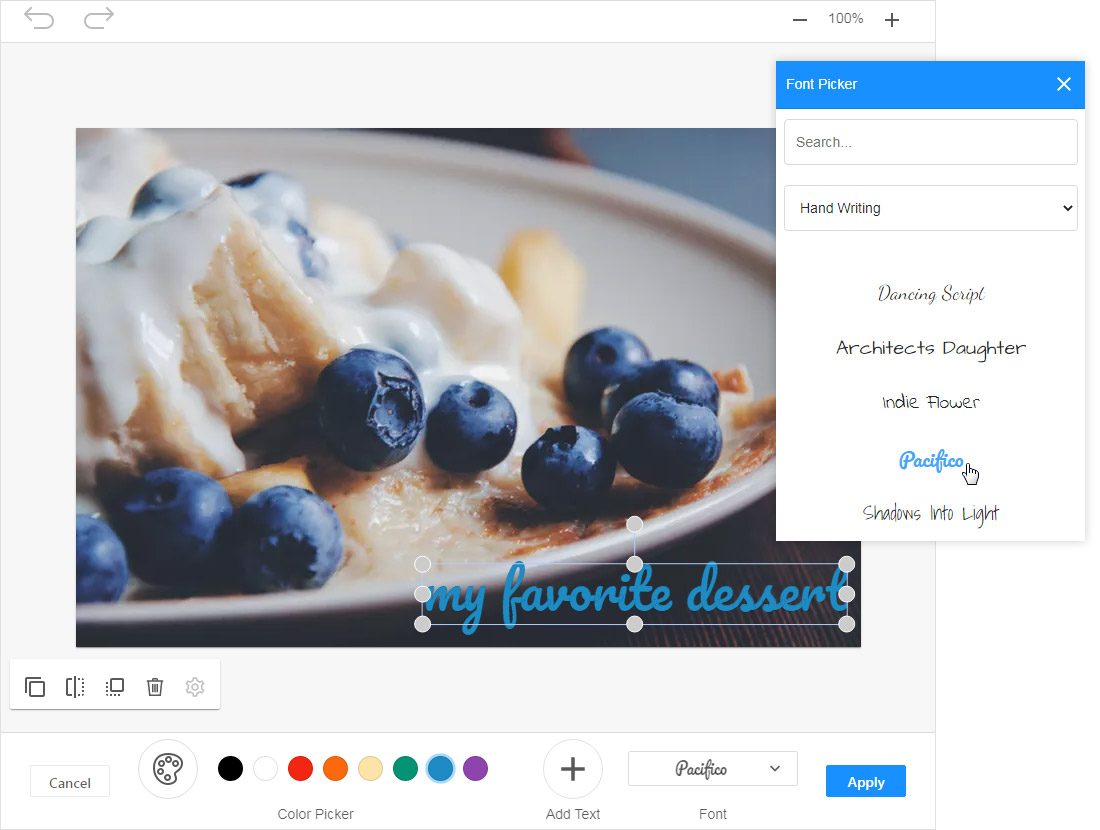
*Tools to add text, a color picker, and font family*
## Features and buttons
| | | |
|---|---|---|
| Crop buttonCrop | Crop photo to one of the specified aspect ratios or let a user select custom crop zone via the UI | |
| Resize buttonResize | Use pixel-by-pixel control with maintaining pixel aspect ratio to adjust an image to the exact dimensions you need
| - Maintain Aspect Ratio
- Use Percentages |
| Transform buttonTransform | Rotate an image clockwise or counter-clockwise, flip horizontally or vertically | - Free rotation of the image using a slider
- Rotate 90° CW
- Rotate 90° CCW
- Flip Horizontal
- Flip Vertical |
| Corners buttonCorners | Round corners of the image using UI | |
| Filters buttonFilters | Adds effects to an image such as grayscale, sharpen, vintage, sepia, blur and more
| Custom filter settings:
- Remove Color (the filter offers the color picker and distance options)
- Brightness (adjust brightness level using the slider)
- Gamma (manual correction of Blue, Green, Red channels)
- Noise (noise intensity)
- Pixelate (sets the level of pixelation for an image)
- Blend (configures the alpha-channel) |
| Draw buttonDraw | A tool for freehand drawing | - Color picker
- Brush types
- Brush size |
| Text buttonText | A tool to add text
- Color picker
- Font family | All objects are in their own layers and can be easily moved, deleted or modified.
Additional settings:
- Flip horizontally/vertically
- Shadow
- Outline
- Color
- Background
- Texture
- Gradient
- Opacity
- Text style |
| Shapes buttonShapes | A tool to add shapes (circle, rectangle, triangle, ellipse, line, etc.) | |
| Stickers buttonStickers | Nearly 500 stickers in twelve categories: arrows, hand-drawn marks, numbers and marks, speech bubbles, interface icons, badges, stamps, emoji, shopping, seasonal, decorations, weather and nature. Your own stickers get a category of their own | |
| Save mode | A mode to save all changes in the image | save/cancel |
| Zoom | The canvas can be scaled using the mouse and also with the +/- button on the top panel | |
| Undo/Redo | Any changes in the image can be undone or redone | |
### The option **Edit image** with Image42 is available from several places
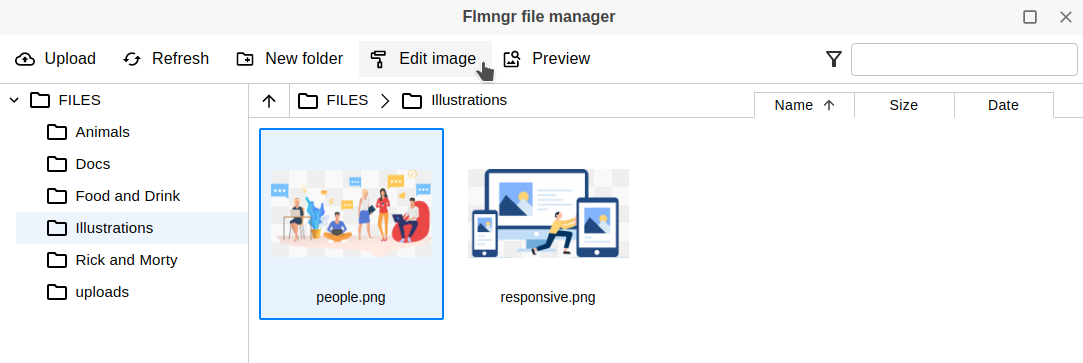
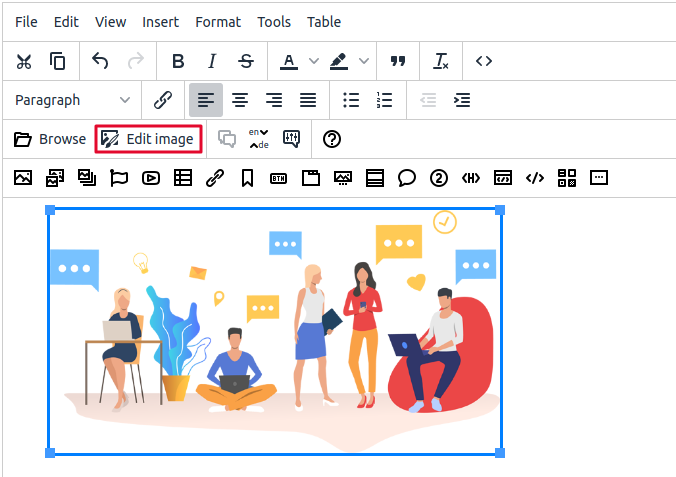
1. The **Edit image** button on the CKEditor or TinyMCE toolbar is active if the image is selected
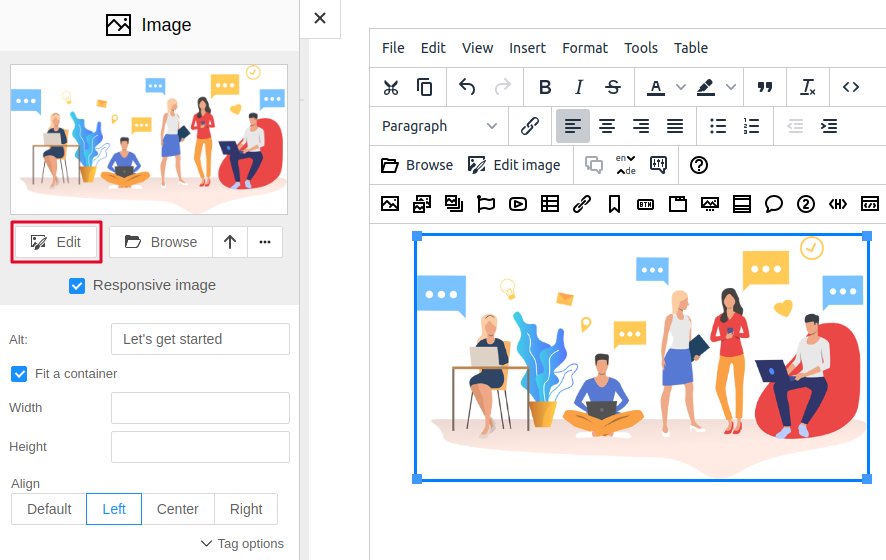
2. The **Edit** button on the sidebar or in the editing dialog [image widgets](https://n1ed.com/how-to/image-widgets)
3. In [Flmngr](https://n1ed.com/how-to/file-manager): before you insert an image to the content, you can edit it