# Working with HTML
> Edit raw HTML in the CodeMirror source dialog with highlighting and find and replace, or paste code as an HTML snippet widget.
Source: https://n1ed.com/how-to/source
Section: Typography and basics > Source code
Updated: 2026-09-20
Every page of n1ed.com has a Markdown copy at its URL + `.md` (`index.md` after a URL that ends in `/`); all of them are in one file: https://n1ed.com/llms-full.txt
> **Note**
>
> We recommend this type of content editing only for advanced users.
N1ED is a WYSIWYG editor based on CKEditor and TinyMCE that allows its users to work with content without knowledge of HTML. However, sometimes you may need to access the raw HTML code. In classic editors this possibility is provided by the built-in Source plugin.
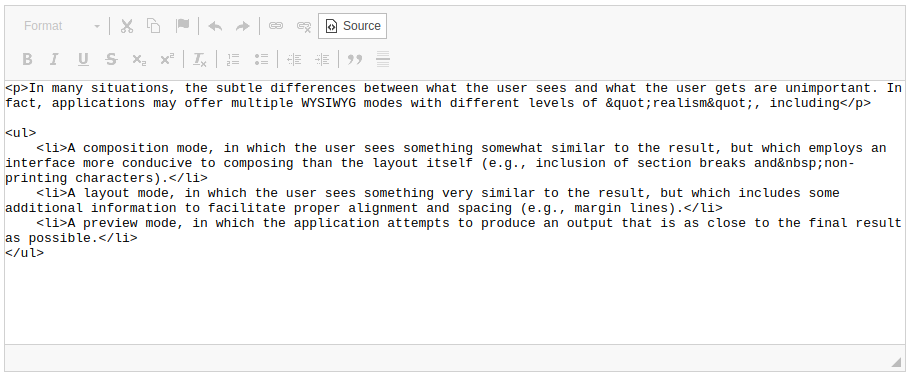
*Source in CKEditor implementation*
N1ED enhances the capabilities of the built-in plugin by merging it with CodeMirror. The source dialog now includes syntax highlighting, and find and replace features, that greatly improve user experience.
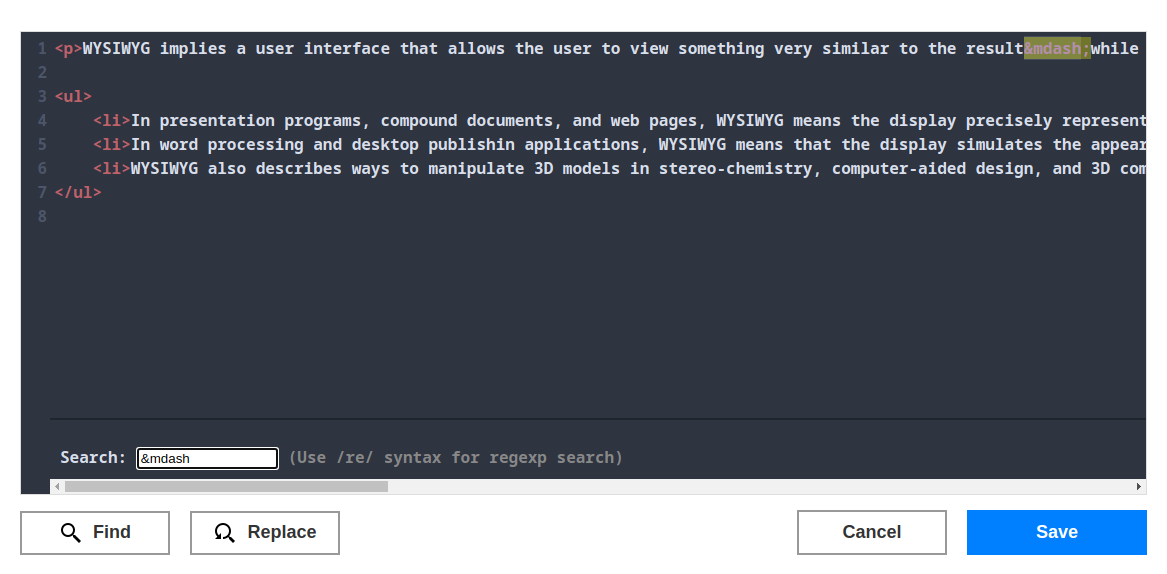
*Source in N1ED*
## Insert HTML snippet
One more way to work with raw code is inserting the HTML snippet widget. It may come in handy when you need to insert your own fragment of code. For example, some third-party services may offer snippets to paste video and media content to a page. One particular case is embedding a YouTube video (there is a special [widget](https://n1ed.com/how-to/youtube-widget) for this service).
To insert code, bring up the HTML snippet dialog  and paste your code there.
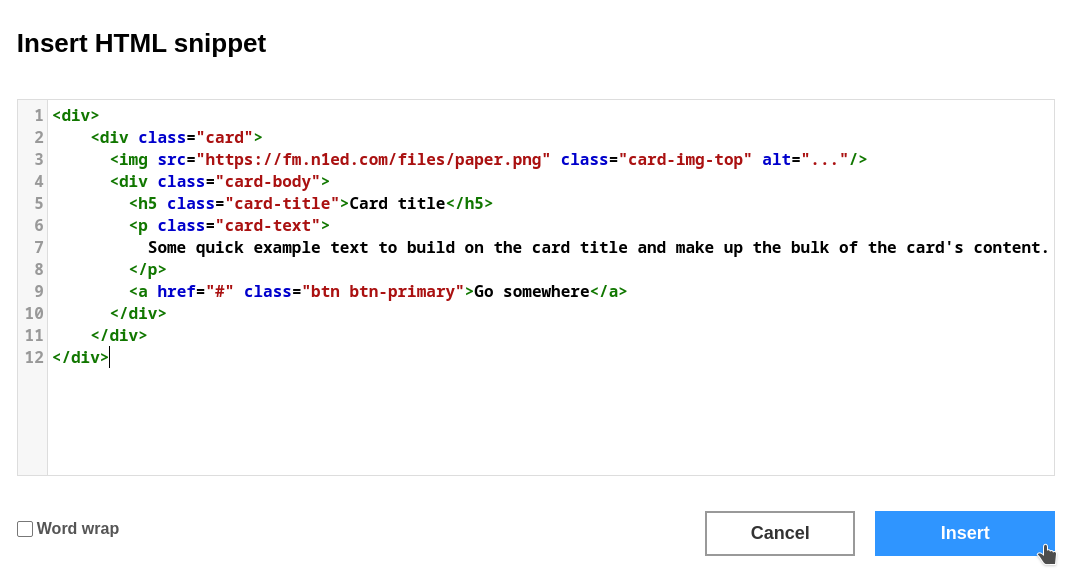
*Add HTML*
The inserted snippet can be saved as a [custom widget](https://n1ed.com/how-to/custom-widgets). Then, you can modify it and reuse many times.
To save the template, locate on [breadcrumbs](https://n1ed.com/how-to/breadcrumbs) the root tag that includes all elements you want to save, then use the **"Save as custom widget"** action. The template is created from the highlighted area.
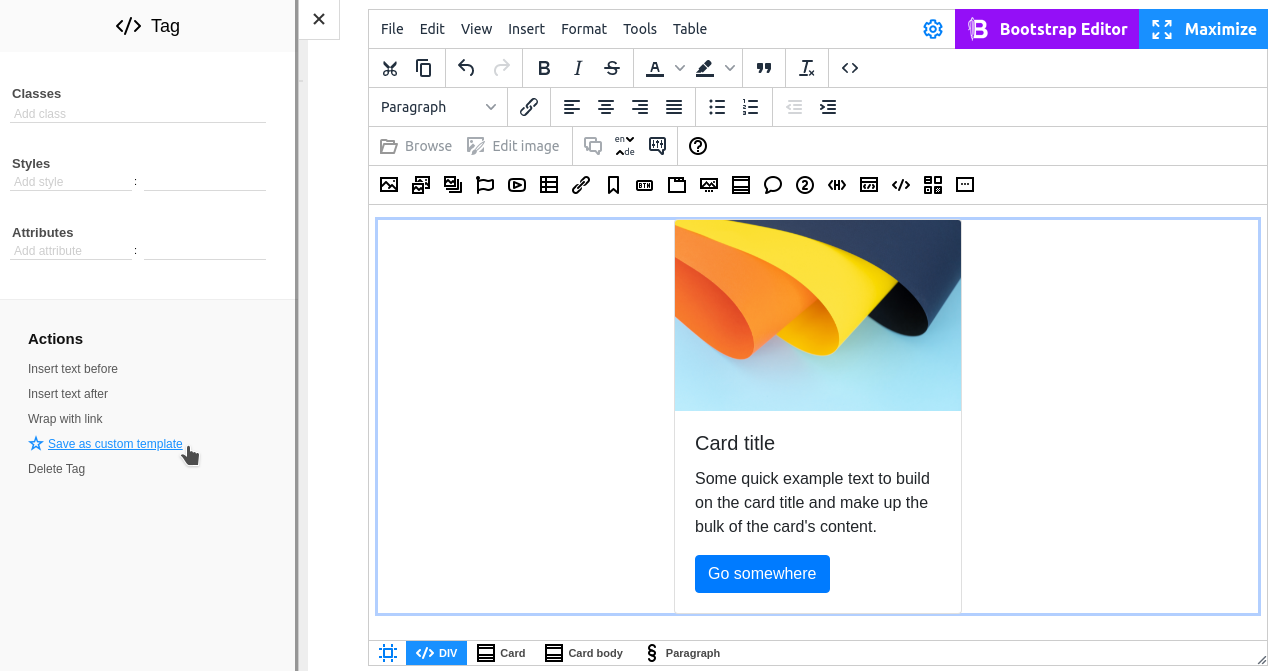
*Save HTML snippet as a widget*
To bring up the template library, click the Custom widgets button .
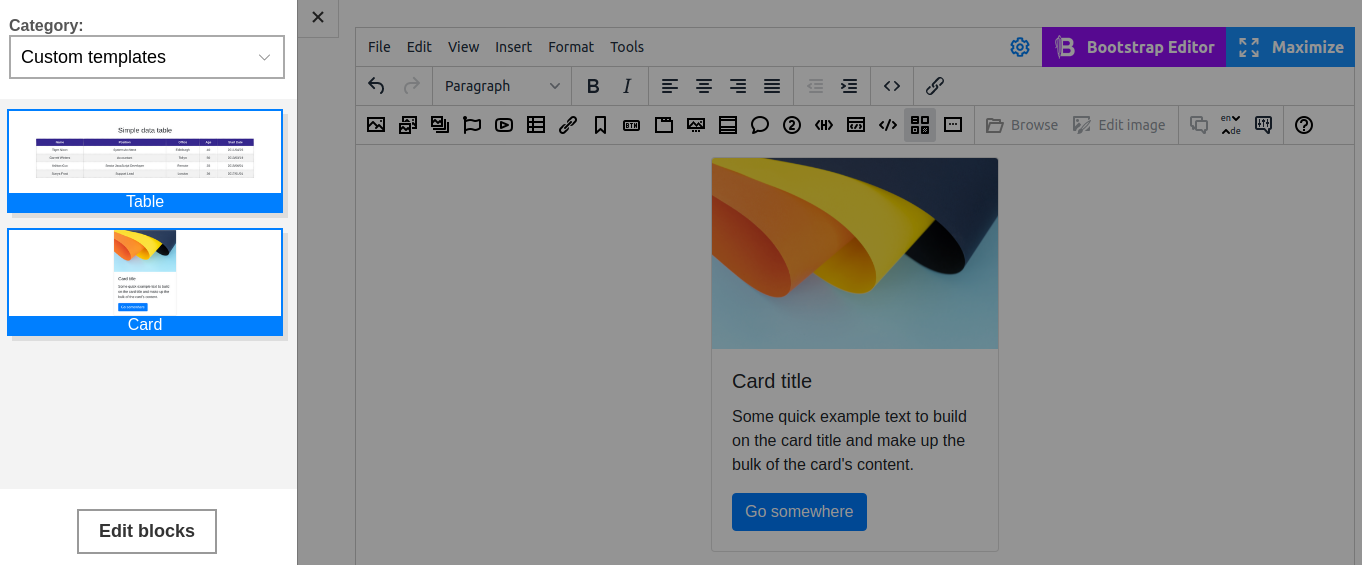
*Custom widgets library*