Create YouTube API key
YouTube is a popular online video-sharing platform where users can upload, view, and share videos. N1ED provides the functionality to embed YouTube videos on your website and facilitates video searches based on keywords or video URLs using the YouTube Data API.
To enable this feature, you must generate your personal API key. In our comprehensive guide, we provide step-by-step instructions on how to create your free API key.
1. Create a Google Cloud Platform (GCP) Project:
- Go to the Google Cloud Console.
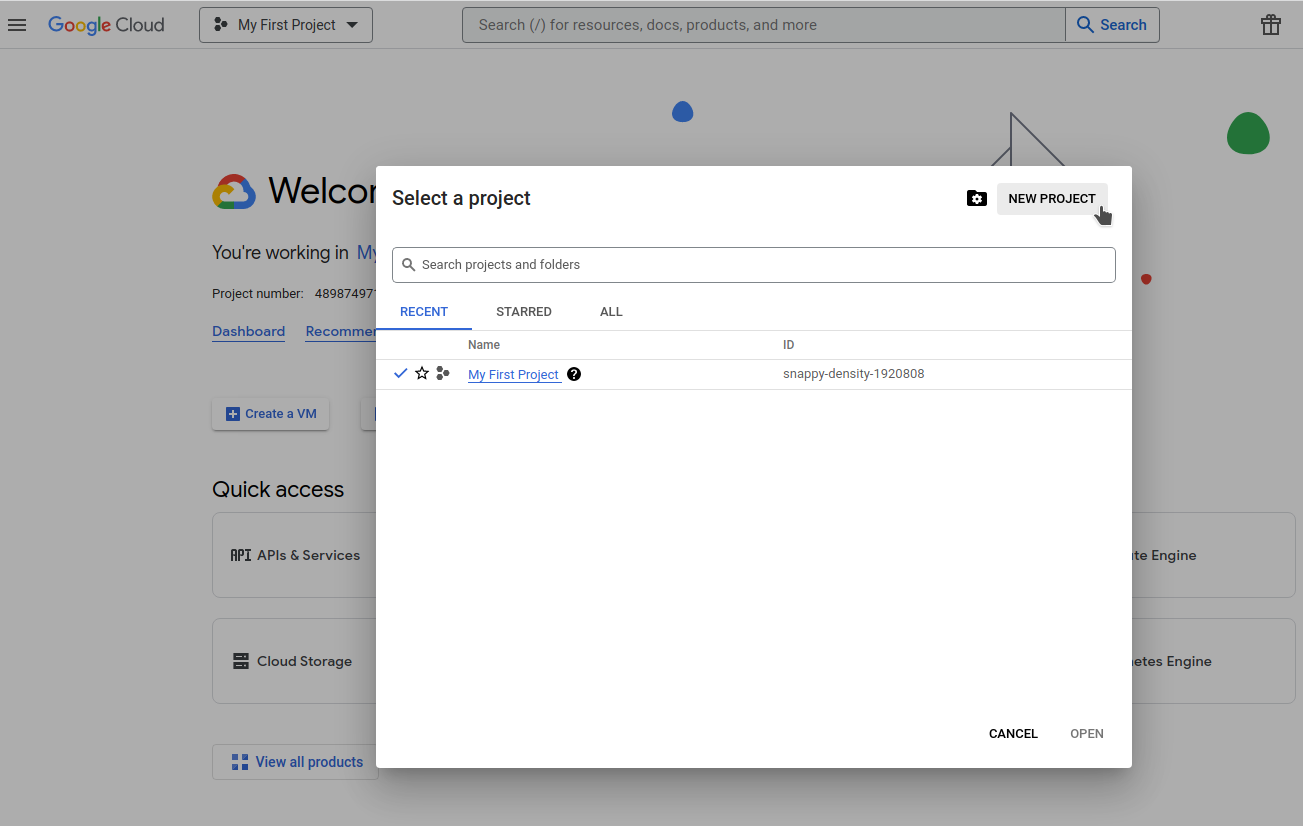
- Click on the project drop-down and create a new project. If you already have a project, you can use it instead.
2. Enable the YouTube Data API v3:
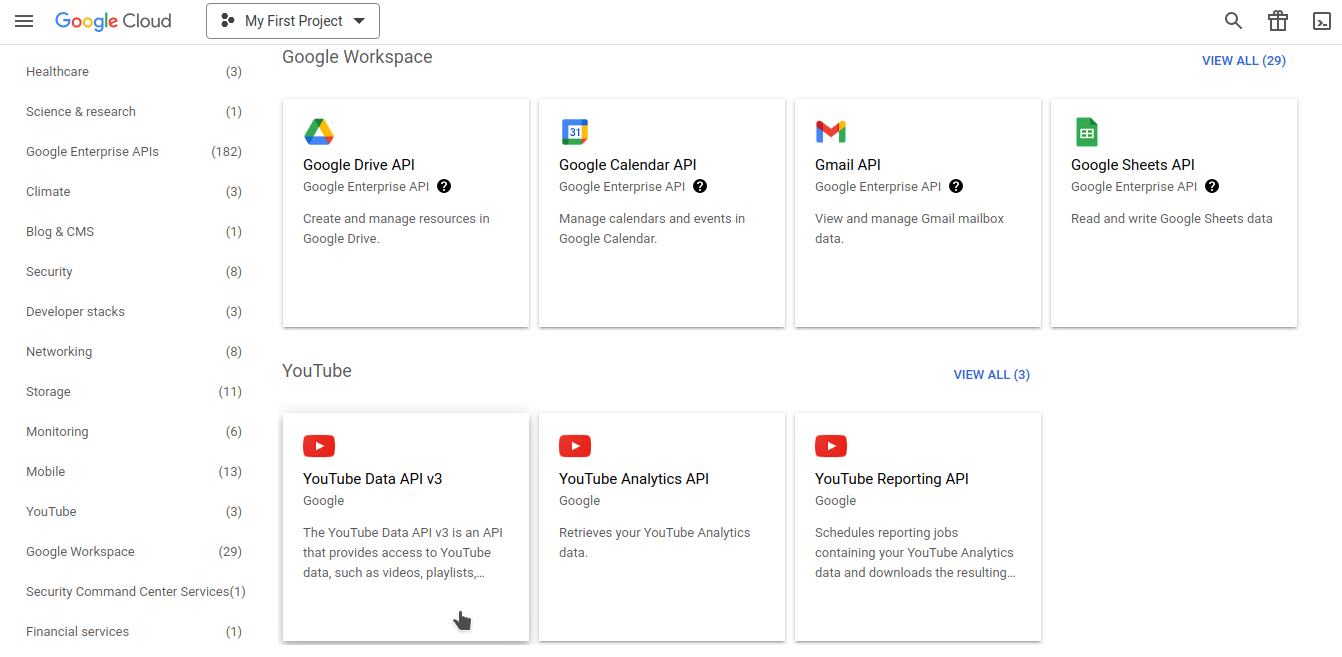
- In the Google Cloud Console, navigate to the "APIs & Services" > "Library" section.
- Search for "YouTube Data API v3" and click on it.
- Click the "Enable" button.
3. Create API Key:
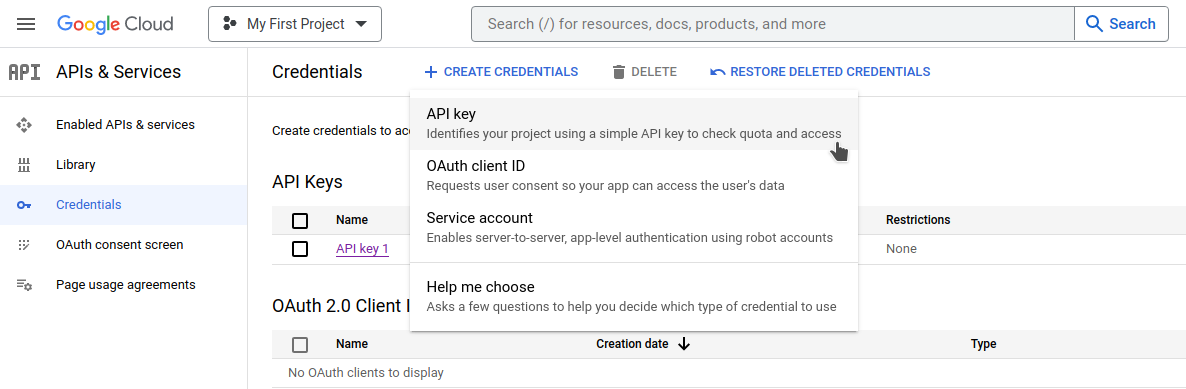
- In the Google Cloud Console, navigate to the "APIs & Services" > "Credentials" section.
- Click the "Create credentials" button and select "API Key."
- Your API key will be generated.
4. Use the API Key:
Now that you have your API key, add it to N1ED:
- Open your Dashboard, go to the Settings tab and find the Toolbar row of the N1ED section.
- Click the YouTube button in the copy of your toolbar there (its hint is "Insert YouTube video"), enter the API key in the YouTube API key field of the window that opens, click OK and save the configuration.
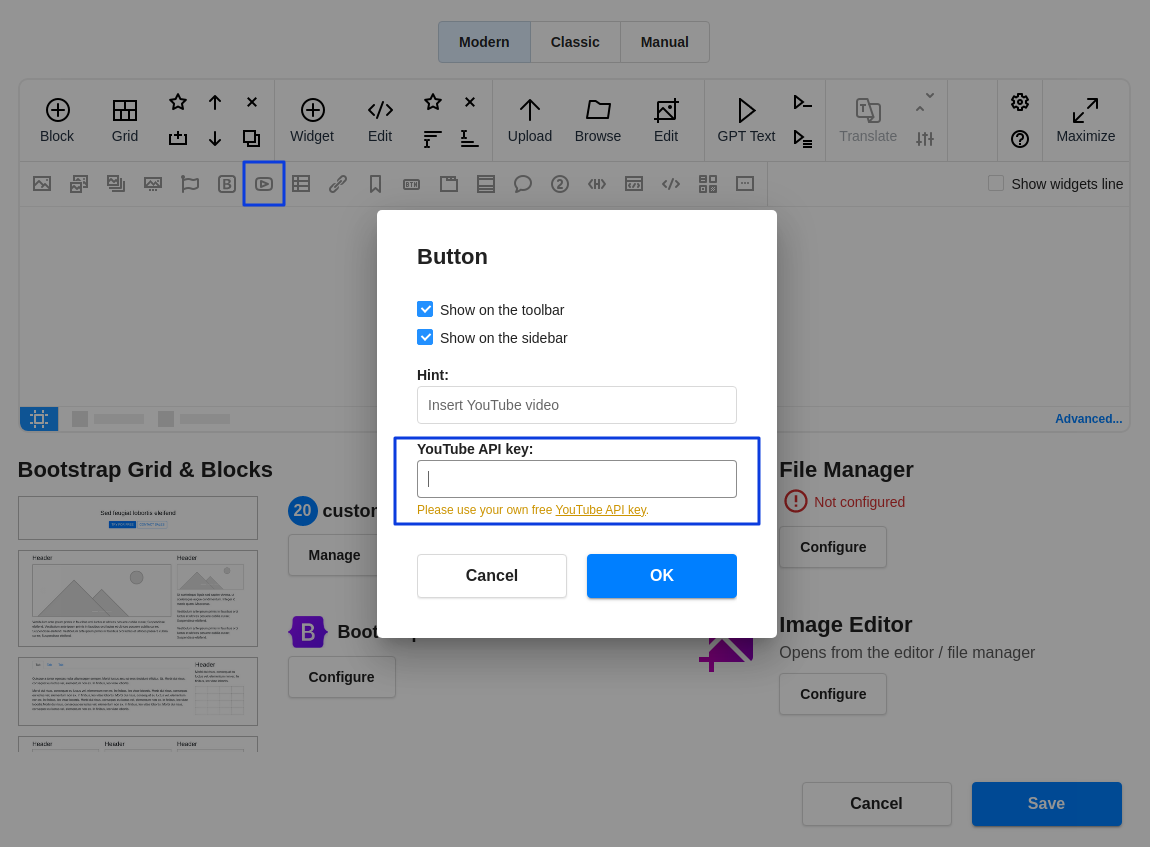
The same field is in Status → 3rd party services. The window also has the defaults for new videos: whether they are created in a responsive 16:9 container, whether they use YouTube's privacy mode, and Limit calls to YouTube API, which skips the checks of a video when you edit it.
Our server searches YouTube with your key, so it only works when it is saved in the Dashboard: a key passed in the editor's own config is not used. Without a key you can still insert a video by pasting its link, but not search for one by words.
In the Google Cloud Console, restrict the key to the YouTube Data API v3. Do not restrict it to your website's address: some of the requests come from our server, not from your website.