Theming your content with CSS
It is important to enable your content managers to write new content while visualizing the styles applied to that content. Your website can define fonts, colors, backgrounds, margins, and other elements for its visitors. N1ED will incorporate these styles within the editor box as well.
To achieve this, open the Settings tab of your Dashboard and click Change next to Extra CSS & JS in the Framework row. Enter the URL of the CSS file of your website under Inside the Editor. Once this step is completed, N1ED will utilize this theme as the styling within the WYSIWYG editor.
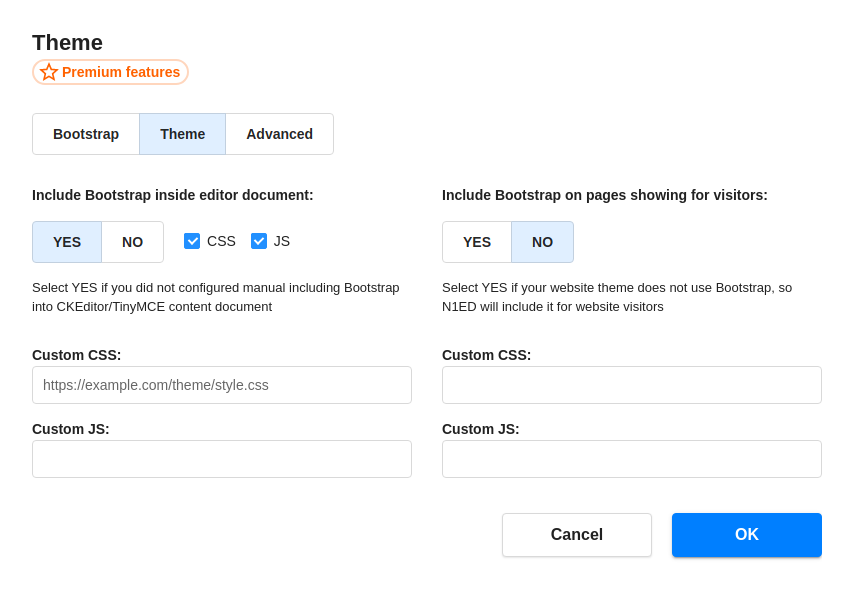
Each list takes as many URLs as you need: a new empty field appears under the last one. Use absolute URLs.
- Inside the Editor: CSS and JavaScript files loaded into the editing area, together with your framework. JavaScript is for deep tuning only, in most cases you do not need to include scripts into your content area.
- On Visitor Pages: CSS and JavaScript files added to the pages of your website that show the edited content. They are loaded by
widgets.js, the small script N1ED adds to the content it saves, so they reach your pages even when your website's theme does not load them.
Bootstrap support
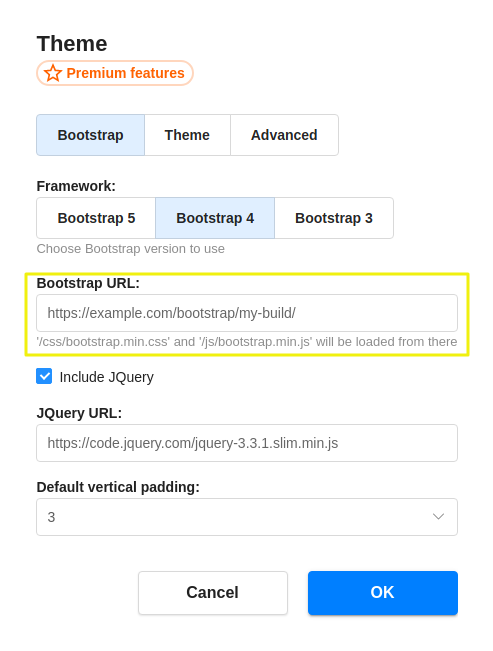
In case you are utilizing your own Bootstrap theme, specify the URL of your Bootstrap build instead of the one from the CDN: Change next to Load from CDN, then Use Custom CSS. For Bootstrap this URL points to the directory where the styles and scripts are stored, the one with the css and js folders in it. See Bootstrap Editor settings.
Configuration parameters
CSS in the editor
Absolute URLs of your CSS files (theme stylesheets), loaded into the editing area.
include.extraCssInEditorstring[][]JS in the editor
Absolute URLs of JavaScript files loaded into the editing area.
include.extraJsInEditorstring[][]CSS on visitor pages
Absolute URLs of CSS files added to the pages that show the edited content.
include.extraCssOnVisitorPagestring[][]JS on visitor pages
Absolute URLs of JavaScript files added to the pages that show the edited content.
include.extraJsOnVisitorPagestring[][]