Configuring UI, toolbar and widgets
These settings are in the N1ED section of your Dashboard's Settings tab: the Toolbar row for the toolbar and the widgets, UI mode and Tag editing for the rest of the editor.
Toolbar modes
There are three toolbar modes, picked with Toolbar mode in the Toolbar row:
- Modern, Auto in the Dashboard: the one new API keys start with;
- Classic, Auto (old): the previous version of the automatic toolbar;
- Manual: you list the buttons yourself.
Under the switch is a live copy of the toolbar in the chosen mode. Click any button of it to set up that button.
Modern toolbar
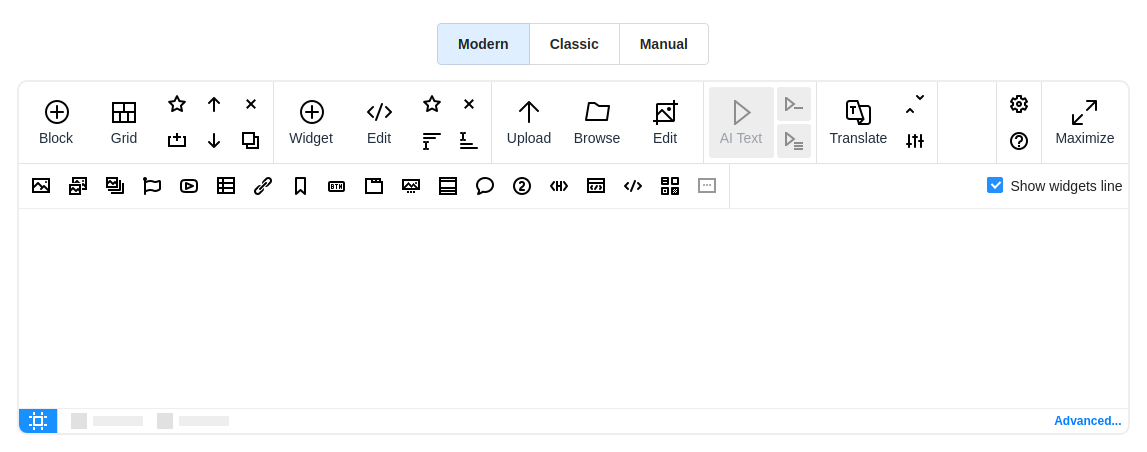
The modern toolbar, Auto in the Dashboard, fills the toolbar of your TinyMCE or CKEditor with the buttons of N1ED, so you do not change the toolbar in the editor's own config. The buttons are grouped into sections:
- Blocks and the grid: add a block, the Grid mode, and save, move, duplicate or delete the selected block
- Widgets and related tools: add a widget, edit, save or delete the selected one, add text before or after it
- Tools for working with images and files: upload, browse, edit an image
- Services: AI text generation and the translator
- Editor settings: Configure, Info and Maximize
For swift access to widgets, the second line has a button for each widget: check Show widgets line to show it, and hide single widgets there by clicking them. A greyed-out button in the copy is a hidden one.
Click a button to hide or show it, change its title, or add a tooltip. The sidebar settings and the templates of widgets are in the same dialog, see Widget templates.
Classic toolbar
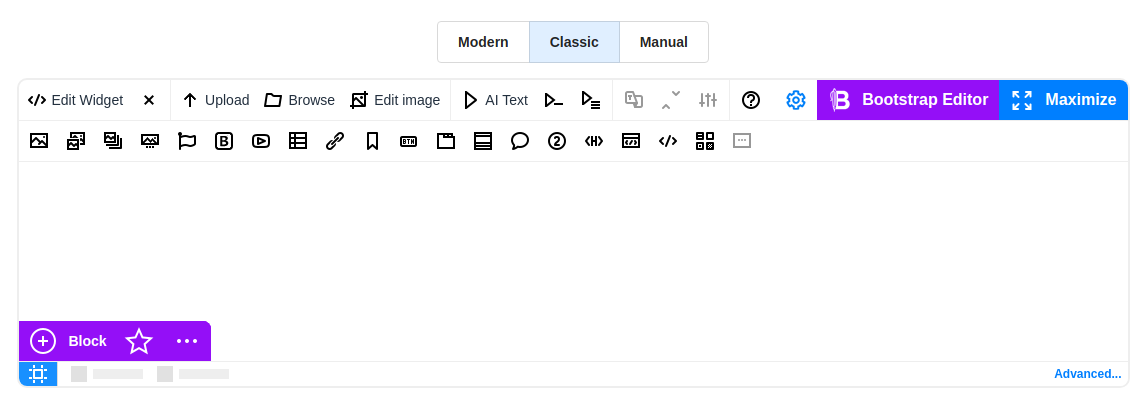
The classic toolbar, Auto (old) in the Dashboard, is the automatic toolbar N1ED had before. It stays for the websites that use it, and we recommend switching to Auto. It has the widget buttons, and on its right the top buttons: "Configuration", "Bootstrap Editor" for seamless transitioning into the grid mode for block structuring, and "Maximize" for full-screen editing. The Bootstrap quick panel at the bottom left adds and rearranges blocks without switching to the grid mode.
To hide some buttons, click the desired button, in the dialog that opens you can control the visibility of the button, or rename them, and incorporate informative tooltips. Click a top button or the quick panel to set it up the same way.
Manual toolbar
With the manual toolbar, N1ED adds no buttons by itself, and you customize your editor's toolbar according to your preferences: add the buttons you need to the toolbar in the editor's own config. See buttons list shows every button you can use, with the name to put there:
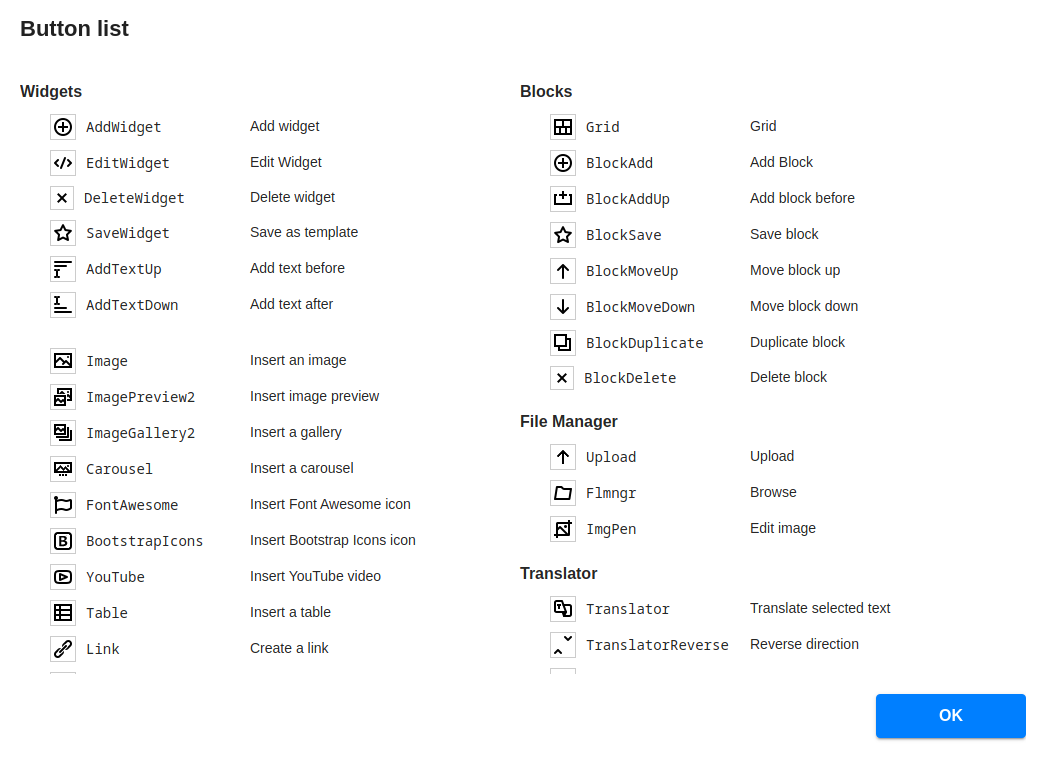
For example, in TinyMCE:
tinymce.init({
    selector: "#editor",
    plugins: "n1ed",
    toolbar: "undo redo | bold italic | BlockAdd Grid | Upload Flmngr ImgPen | Image YouTube Table | Configure Maximize",
});
In CKEditor 4 the same names go into config.toolbar. The buttons, with their default hints:
| Section | Buttons |
|---|---|
| Widgets | AddWidget Add widget, EditWidget Edit widget, DeleteWidget Delete widget, SaveWidget Save as custom widget, AddTextUp Add text before, AddTextDown Add text after |
| Widgets to insert | Image, ImagePreview2 image preview, ImageGallery2 gallery, Carousel, FontAwesome and BootstrapIcons icons, YouTube, Video video file, Table, Link, Anchor, Button, Tabs, Accordion, Alert, Badge, Header, IFrame embedded page, HTML snippet, CustomTemplates custom widgets, Placeholder, JoomlaReadMore (Joomla only) |
| Blocks | Grid, BlockAdd Add block, BlockAddUp Add block before, BlockSave Save block, BlockMoveUp, BlockMoveDown, BlockDuplicate, BlockDelete |
| File Manager | Upload, Flmngr Browse, ImgPen Edit image |
| Translator | Translator Translate selected text, TranslatorReverse Reverse direction, TranslatorConf Translation options |
| Text generation | Txt42 GPT Text, Txt42Less Less GPT text, Txt42More More GPT text |
| UI | Info, Configure, Maximize |
On Joomla there is one more, JoomlaReadMore, the "Read more" cut.
Widget templates
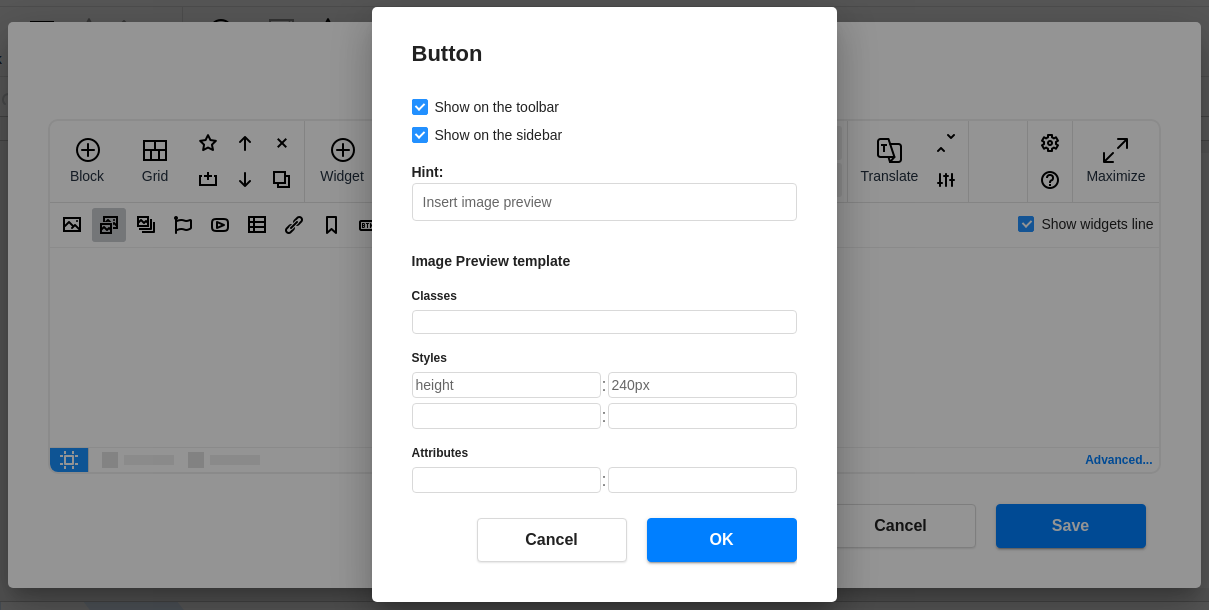
In the configuration panel, you have the ability to customize not only the toolbar but also the widgets themselves. For instance, you can craft widget templates by defining classes, styles, and attributes granting you full control over their appearance and behavior.
To do this, click the desired button, in the dialog that opens you can set your own settings for the corresponding widget:
- Show on the toolbar and Show on the sidebar: where the widget can be inserted from;
- Hint and, for buttons with a label, Title;
- the template of the widget: the classes, styles and attributes every new widget of this kind gets. The Image Preview widget, for example, is created 240 pixels high by default;
- the widget's own options, such as the YouTube API key of the YouTube widget.
A template applies to the widgets you insert from then on, not to the ones already in your content.
Structure highlighting
Structure highlighting enables users to visualize the underlying structure of their content as they work. By highlighting elements such as Bootstrap structure (containers, rows, columns) and non-Bootstrap content like headings, paragraphs, and other formatting components, the editor provides a clear overview of how the content is organized.
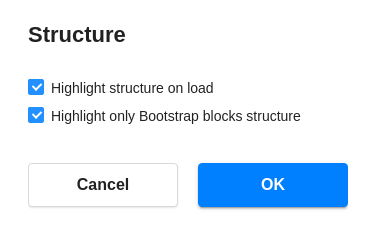
The usage options:
- Automatically on load: check Show grid on start in the Framework row of your framework's section to have the outlines on as soon as the editor loads.
- Manual activation: uncheck it, and turn the outlines on precisely when required with the button at the left end of the editor's status bar.
- Highlight Bootstrap structure: the Grid button (or "Bootstrap Editor" on the Auto (old) toolbar) switches to the grid mode, which shows only the containers, rows and columns, to work with the layout.
- Highlight any structure: the outlines of the normal mode show every element of the content, the grid and the text alike.
Advanced options
You can change the advanced UI settings for the editor view to suit your preferences. The UI mode row picks how the editor behaves on your page, and Tag editing the tools for classes, styles and attributes.
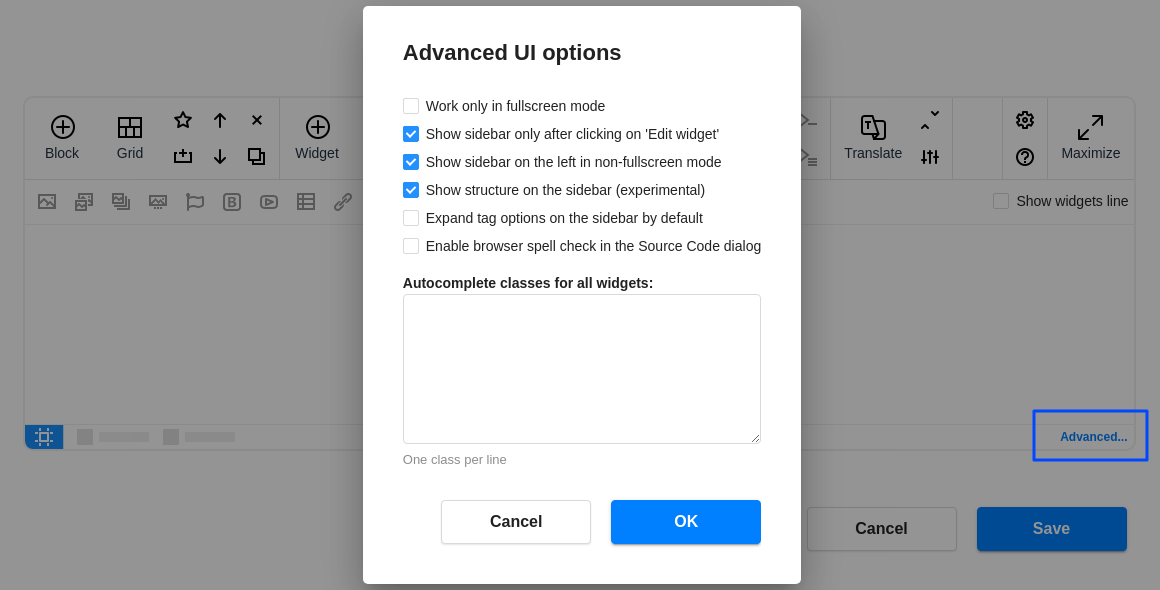
- Classic mode: use the editor as usual; it is maximized only with its Maximize button. Two options:
- Manual sidebar opening: the sidebar with the settings of the selected element opens only with the "Edit widget" button (or a double click), not as soon as an element is selected. Do not hide the "Edit widget" button on the toolbar in combination with this setting.
- Sidebar is on the left:
true— position the sidebar to the left of the editor,false— to the right.
- Grid mode: the editor is covered, and a click anywhere on it opens it maximized in the grid mode, to work with blocks.
- Maximized mode: the same, but it opens maximized in the normal mode.
- Grid and Maximized modes have two more options:
- Work only in fullscreen mode, Full screen editing only in the Dashboard: the editor is covered again every time you leave the full screen, so it is only ever edited maximized. Without it, the cover is gone after the first time. Maximized, you can also switch the screen size to check how responsive your content is.
- Style editor with cover: a click-to-edit label and a tint over the editor on hover. Unchecked, the cover is invisible.
- Expand Tag options on the sidebar by default: Tag options are collapsed by default. You can modify this behavior if you frequently need to access this tool during editing to add classes, styles, and attributes.
- Autocomplete classes for all widgets, Custom autocompletion classes in the Dashboard: here, you can add your theme classes, one per line, for the autocomplete feature in Tag options.
The option Show structure on the sidebar is gone: the breadcrumbs under the content show the structure of the selected element.
Configuration parameters
Each setting above is a key in the configuration of your API key. You can also set it in the editor's own config for a particular page or user, see Dynamic config. A value set there overrides the Dashboard.
Fullscreen mode only
The UI mode of the editor. classic is the Classic mode, grid_once and fullscreen_once are the Grid and Maximized modes, grid and fullscreen are the same with Full screen editing only. Inline editors are always in the classic mode.
ui.modestringclassicclassic, grid_once, fullscreen_once, grid, fullscreenShow sidebar only when maximized
In the Classic mode, true opens the sidebar only with the "Edit widget" button or a double click, false opens it as soon as an element is selected. Maximized, the sidebar is always there.
ui.showSidebarOnlyInFullScreenbooleantrue, new API keys: falseSidebar is on the left
Sidebar position in normal mode.
ui.leftSidebarbooleantrueCover style
The look of the cover over the editor in the Grid and Maximized modes.
ui.themeCoversstringclassicclassic, transparentTop buttons
The buttons on the right of the Auto (old) toolbar. With the Auto toolbar, Configure and Maximize are ordinary buttons of the toolbar, set up in ui.toolbarButtons below.
ui.showFullScreenButtonbooleantrue"Maximize" button visibility
ui.fullScreenButtonTitlestringMaximizeFullscreen button title in normal mode
ui.fullScreenExitButtonTitlestringOKFullscreen button title in maximized mode
ui.showBootstrapEditorButtonbooleantrueBootstrap Editor button visibility
ui.bootstrapEditorButtonTitlestringBootstrap EditorBootstrap Editor button title
ui.gridButtonTitlestringGridGrid button title ("Bootstrap Editor" button in maximized mode)
ui.showConfButtonbooleantrueConfiguration button visibility
ui.confButtonTitlestringConfiguration button title
Bootstrap quick panel
The panel for adding and moving blocks at the bottom left of the Auto (old) toolbar's editor.
ui.showBootstrapEditorQuickPanelbooleantrueUse automatic toolbar
By default, N1ED will fill a toolbar of your CKEditor or TinyMCE with new buttons automatically and you do not need to change toolbar configuration in the initialization script (CKEditor/TinyMCE) or inside config.js (CKEditor only). But if you set it to false, only the buttons you add to the editor's toolbar yourself are displayed: the Manual mode. Change this option only if you know how to configure CKEditor/TinyMCE toolbar and want to configure it in a special way.
ui.useAutoToolbarbooleantrueAutomatic toolbar version
2 is the Auto toolbar, 1 Auto (old).
ui.autoToolbarVersionnumber1, new API keys: 21, 2Widgets line
The second line of the Auto toolbar, with a button for each widget.
ui.showWidgetsOnAutoToolbarbooleanfalse, new API keys: trueAuto toolbar lines
The Auto (old) toolbar can be a single line or multiline in normal (not fullscreen) mode. Set this option to force the number of lines or make autodetection of the best view (based on editor width).
ui.autoToolbarLinesnumber00, 1, 20 means auto, 1 or 2 mean the number of lines
Auto toolbar lines (full screen)
The same as previous option, but in fullscreen mode
ui.autoToolbarLinesInFullScreennumber00, 1, 20 means auto, 1 or 2 mean the number of lines
Toolbar
Click on any of the buttons in the list and configure its visibility, title, and mouseover hint. All names of buttons (used as keys) are enumerated above.
ui.toolbarButtons{[name: string]: {title?: string, hint?: string, isVisible?: boolean}}The Auto toolbar reads the same fields with a _v2 suffix: title_v2, hint_v2 and isVisible_v2, so a button can look different there and in Auto (old). Place into this object only the buttons whose properties you want to override, for example:
ui: {
    toolbarButtons: {
        ImgPen: { title_v2: "Edit photo" },
        Translator: { isVisible: false, isVisible_v2: false }
    }
}
Widget templates
What every new widget of a kind gets: its classes, its styles and its attributes. Most widgets have one template, Tabs and Accordion have one for each of their parts.
widgets.<Name>.template{classes: string[], styles: {[property: string]: string}, attributes: {[name: string]: string}}For example, widgets.Image.template is {classes: ["img-fluid"], styles: {width: "auto", height: "auto"}, attributes: {alt: ""}} by default, and widgets.Table.template gives new tables the table class and 100% width.
Widget on the sidebar
Whether the widget can be inserted from the sidebar.
widgets.<Name>.enabledbooleantrueExpand Tag options
Open the Tag options of the sidebar expanded.
ui.expandTagOptionsbooleanfalseAutocomplete classes for all widgets
These classes will be available in autocomplete dropdown when you add classes to some widget. You can add there some class names from your website theme which you use to style content.
ui.autoCompleteClassesstring[][]