Editing N1ED configuration
N1ED keeps its settings in the cloud, attached to your API key: the toolbar, the UI mode, the CSS framework of your website, the file manager, the image editor and the third-party services. Every editor that loads N1ED with your API key gets the same settings, so you configure a website once, not every page with an editor on it.
First of all visual N1ED configuration is available for you: the Settings tab of your Dashboard. This is the default and recommended way to configure your HTML editor, and in most cases it is enough to set all the preferences you need.
Also sometimes you need to pass configuration programmatically, for example a separate upload folder for every user: then you put N1ED keys into the TinyMCE or CKEditor configuration of the page. This works together with the Dashboard, and a value passed this way overrides the Dashboard's.
Visual configuration
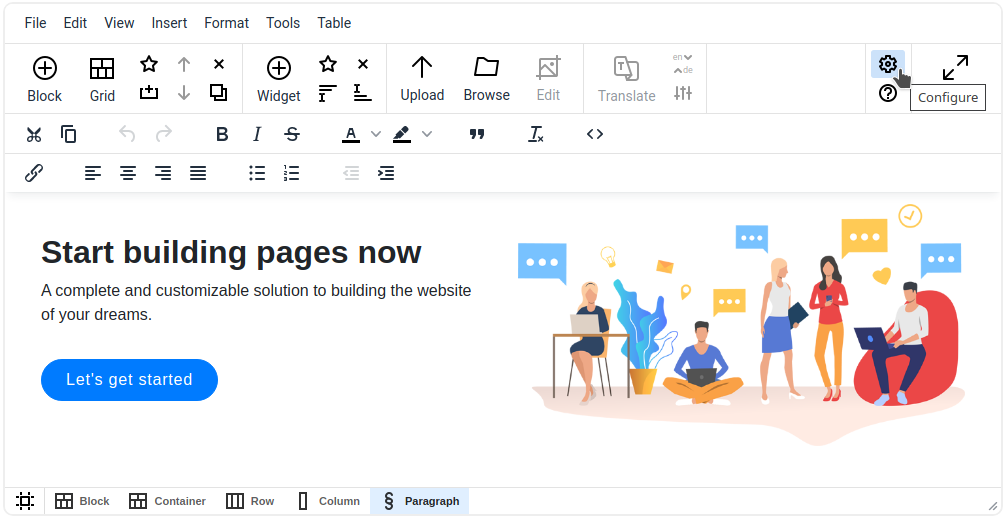
To change the settings, open your Dashboard, pick the website on the left and go to the Settings tab. The gear button (Configure) at the right of the editor's toolbar opens the Dashboard in a new tab, and so does the configuration page of our CMS modules: it starts on the Blocks tab of the first website of your account, so pick yours there. Each API key has its own settings: a website is one API key.
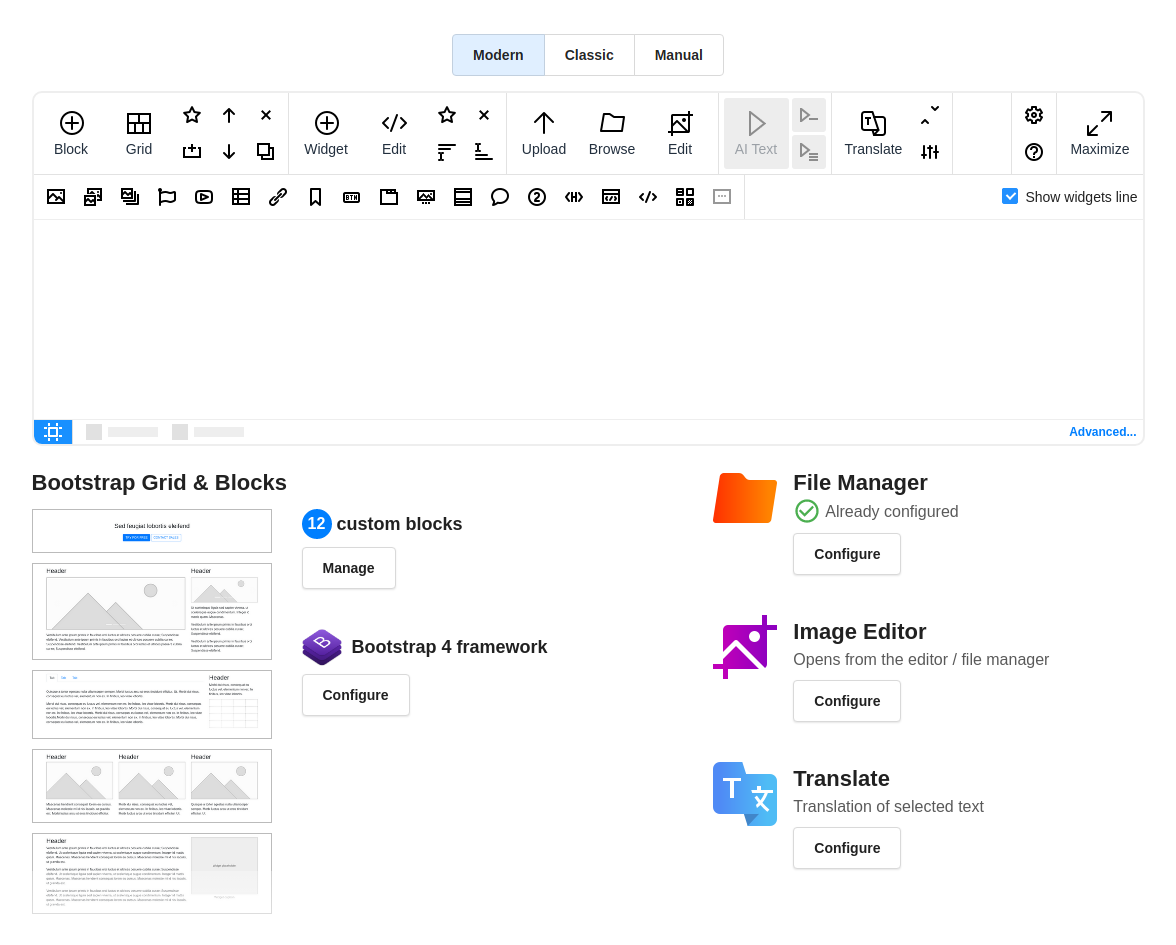
The Settings tab has a section for each part of N1ED:
| Section | What you set there | Manual |
|---|---|---|
| Your framework (Bootstrap or Tailwind CSS) | which framework your website uses, where it is loaded from, extra CSS and JS, the grid on start | Bootstrap and Tailwind CSS settings, CSS theming |
| N1ED → Toolbar | the toolbar mode, and the title, hint and visibility of each button, the templates of widgets | UI, toolbar and widgets |
| N1ED → UI mode, Tag editing | the Classic, Grid or Maximized mode, the sidebar, tag options | UI modes and tag editing |
| File Manager | the link to your file storage, folders, uploads, stock images, the file list | File manager |
| Image Editor | tools, colors, crop ratios, fonts, stickers, shapes, resize limits | Image editor |
| Txt42 (Chat GPT) | your OpenAI API key for text generation | ChatGPT |
| Translate | the translation service, its API key, the languages | Translator |
Two more tabs sit next to Settings: Blocks, your library of saved blocks (Managing Bootstrap custom blocks), and Status, which shows the services that are ready and the ones that still need a key.
Whenever you change something, the Dashboard says Configuration was changed and offers to Save or Undo it. The settings are applied as soon as the configuration is saved: just reload the page with N1ED to see the change.
Most settings are part of the Premium plan. On an API key without it you can see them, but they are locked, and a note at the bottom of the page leads to the upgrade.
One configuration for several websites
The card at the top of the Settings tab says whether the API key has its own settings. Attach makes it inherit the configuration of another API key of your account: useful when a staging and a production website, or many similar websites, should work the same way. The other key becomes a parent, and its changes apply to all of its children. A child key shows its settings read-only, and Detach gives it its own settings again. See parent and child API keys.
Who can read the configuration
Every editor that uses your API key downloads its configuration, so treat it as public: the Unsplash, YouTube and translation keys and the file manager's login you put there can be read by anyone who can open the page with your editor, so give them no more rights than the service needs. The OpenAI key is not sent to the editor: our server uses it to generate texts. Only you can change the configuration: that needs signing in to the Dashboard.
Visit these manuals to learn how to set up:
- Widgets and toolbar configuration
- CSS theming: include CSS/JS configuration
- File manager configuration
- Image editor configuration
- Bootstrap and Tailwind CSS configuration
- Managing Bootstrap custom blocks
- Translator configuration
- ChatGPT for text generation
- YouTube API key
- Unsplash access key for stock images
- Passing configuration in the editor's config